


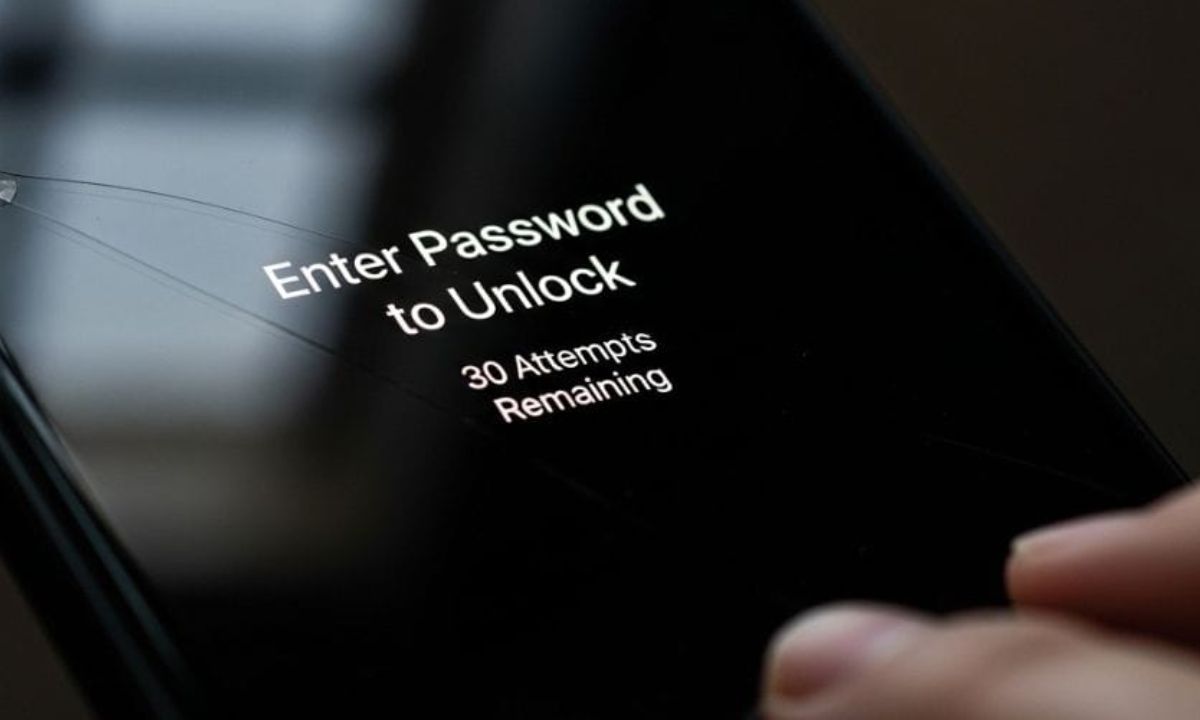
You’re holding your phone, maybe fresh out of a reboot or back from a two-week vacation, and the screen reads: Enter password to unlock, 30/30 attempts remaining. Seems innocent enough, right? But for a lot of people, that message hits different. There’s something oddly nerve-wracking about a countdown, even when it hasn’t started yet.
Let me break this down in plain English. No jargon walls, no panic-inducing warnings. Just a practical walkthrough of what this prompt actually means, when it shows up, what happens if things go sideways, and how to walk away with your data intact.
What “Enter Password to Unlock 30/30 Attempts Remaining” Actually Means
First, take a breath. The 30/30 counter isn’t a threat. It’s a safety net, though it can become a trap if you misuse it.
Here’s the deal: your device has a built-in brute-force protection system. It allows a maximum number of password attempts before it locks you out, delays your access, or in some cases wipes the device entirely. When you see 30/30 attempts remaining, it simply means:
- You haven’t made a single wrong attempt yet
- All 30 tries are still available
- The device is asking for the full password, not a PIN, pattern, or biometric
Think of it like a bank vault. You’ve got 30 chances to spin the dial correctly. That number ticks down with every wrong guess. So yes, the message sounds like a countdown to disaster, but right now? You’re still at the starting line.
This prompt appears most commonly on Android devices (Samsung One UI, Xiaomi MIUI, stock Android), iPhones after a restart, encrypted tablets, and sometimes third-party security apps like password managers or file lockers.
Why Does This Message Appear in the First Place?
This is where a lot of guides stop short. They tell you what the message says, but not why your device is asking for a full password instead of just letting your fingerprint do the work.
After a Restart or Shutdown
This is the most common trigger, and it’s by design. Modern smartphones use something called encryption at rest, your data is encrypted when the device is powered off. When the phone restarts, the encryption key needs to be unlocked before biometrics can work. So it asks for your actual password first. Your fingerprint is just a shortcut, and that shortcut doesn’t activate until the real password unlocks the encrypted partition.
After a System or Security Update
Software updates sometimes reset temporary authentication methods. Your phone essentially says, “Hey, I just changed a bunch of things under the hood, verify it’s really you. Fair enough.
After Too Many Failed Biometric Attempts
If someone tried (and failed) to unlock your phone with a fingerprint multiple times, the device will fall back to password authentication. This is a security escalation, not a glitch.
After Long Inactivity or Remote Lock
If you haven’t unlocked your device in several days, or if you remotely locked it through Find My iPhone or Google’s Find My Device, the device resets to password-only mode. Same thing happens if your MDM (Mobile Device Management) policy pushed a lock command, common in corporate environments.
Third-Party Apps and Encrypted Files
Certain apps, encrypted notes, secure folders, file vault apps, have their own attempt counters. You might see 30/30 on a Samsung Secure Folder, a notes app, or even a PDF reader with password protection. Each of those has nothing to do with your phone’s main lock screen.
The Real Risk: What Happens as You Burn Through Attempts
Most people assume a wrong password is just… a wrong password. But here’s what actually happens across different platforms as that counter drops:
Android (general):
- After several failed attempts, a time delay kicks in (30 seconds, then 1 minute, then 5 minutes, etc.)
- Some devices allow Google Account recovery after a certain number of failures
- Devices with Samsung Knox or similar security layers may trigger a full wipe
iPhone / iOS:
- Apple’s Erase Data option (if enabled in Settings) wipes the device after 10 consecutive wrong attempts
- Even without that option, delays increase exponentially
- After too many attempts, recovery via iTunes or Finder may be your only route
Encrypted Apps and Secure Folders:
- Some wipe their contents automatically after a set threshold
- Others lock permanently and require a master recovery key
The key takeaway? Don’t guess wildly. If you’re drawing a blank, stop at two or three attempts and switch to a recovery method. Every wrong guess is a chip in the wall.
How to Unlock Your Device Safely (Step-by-Step)
Step 1: Think Before You Type
Before entering anything, pause and genuinely try to recall the password. Ask yourself:
- Was this a recent change?
- Do I use a pattern I repeat across devices?
- Could I have set it up while traveling or distracted?
Small context clues help more than people realize.
Step 2: Try Closely Related Passwords
If your usual password doesn’t work, try close variations, an old password, the same password with a capital letter, or one with a number appended. Keep this to two tries max.
Step 3: Use Backup Biometric or PIN
Many systems offer a secondary unlock method. If your phone’s main password isn’t working but you remember your PIN or have a registered fingerprint, try those before burning more password attempts.
Step 4: Account-Based Recovery
- Android: If your device is linked to a Google account, you may see a “Forgot password?” option after several failed attempts. Google’s account recovery will walk you through regaining access.
- iPhone: Use your Apple ID and recovery key via iCloud.com or through another trusted device.
- Samsung: Samsung Account recovery is available for devices with Knox protection.
Step 5: Recovery Mode (Last Resort)
If all else fails, recovery mode lets you factory reset the device. The downside is obvious, you lose everything not backed up. But it’s better than a permanently bricked phone or a full data wipe from too many bad attempts.
- Android: Hold Power + Volume Down during boot (varies by manufacturer) to enter recovery mode
- iPhone: Use DFU mode or connect to a Mac/PC with Finder to restore
Pros and Cons of the 30-Attempt System
This kind of security architecture gets criticized and praised in equal measure. Here’s an honest look at both sides:
Pros:
- Protects against automated brute-force attacks on stolen devices
- Gives legitimate owners plenty of room to recover without panic
- Works across encrypted partitions and secure enclaves
- Provides a clear, transparent counter so users know where they stand
Cons:
- Still allows 30 attempts, which is more than enough for someone who knows you well
- The counter resets in some devices after a restore, meaning persistent attackers could theoretically cycle through passwords if they have time and access
- For older users or those with memory difficulties, the countdown can create anxiety that leads to rushed and wrong, guesses
- Not all devices handle the “wipe after X attempts” setting consistently
Practical Tips to Avoid This Situation Entirely
Honestly, the best fix is prevention. A few habits will save you a ton of headache:
- Use a passphrase instead of a random string. Something like BlueMountain!2024 is far easier to remember than xK#92!pL, and just as secure.
- Enable biometrics as a backup, not a replacement. Your fingerprint should be the shortcut. The password should be the backup you actually know.
- Store your device password in a password manager (on a different device, obviously).
- Turn on automatic cloud backup. If a factory reset ever becomes necessary, losing data shouldn’t be part of the equation.
- Review your lock screen settings. Know whether your device’s “Erase after X attempts” feature is on or off, and make a conscious choice about it.
Frequently Asked Questions
Is “30/30 attempts remaining” the same on every device
No. The number varies. Some devices give you 10 attempts, others 5. Samsung and some Android OEMs often allow up to 30. iPhones cap at 10 (if the erase option is enabled). The 30/30 counter is most commonly seen on Android devices.
Will my data be erased automatically
Only if you’ve enabled “Erase data after X failed attempts” in your security settings. It’s not on by default on most Android phones. On iPhones, it’s a toggle in Face ID & Passcode settings.
Can I reset the attempt counter without losing data
Yes, by entering the correct password, the counter resets to full. No data is affected.
What if the device is a work phone managed by IT
Contact your IT department. They can push a remote unlock or provide a temporary access code. Don’t guess, corporate MDM policies sometimes have stricter wipe thresholds than personal device defaults.
Why does my phone ask for a password after every restart if I have a fingerprint
Biometric authentication only works after the device has been decrypted once. The initial password request post-reboot is what triggers the decryption process. This is a security feature, not a bug.
Wrapping It Up
The message “enter password to unlock 30/30 attempts remaining” is one of those moments that looks scarier than it is, provided you know what you’re doing. At 30/30, you’re in a position of calm control. You have options. You have recovery paths. You have time.
The worst thing you can do is panic and start guessing. The best thing? Stop, think, and use the recovery methods built into your platform. Whether you’re on Android, iOS, or a secured third-party app, there’s almost always a way back, as long as you haven’t burned through all your chances trying random passwords.
Device security is genuinely a good thing. It’s protecting your photos, messages, banking apps, and personal data from anyone who might pick up your phone. That “30/30” counter isn’t an enemy. It’s working exactly the way it should. Work with it, not against it.
